
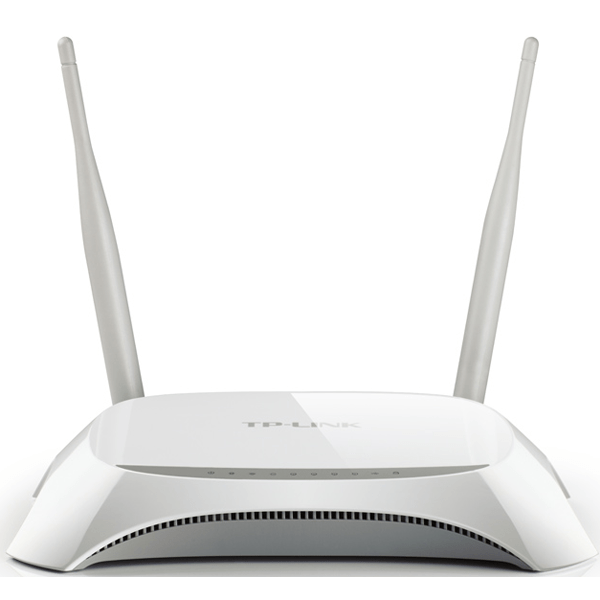
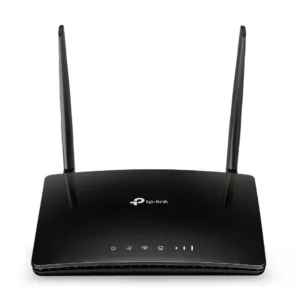
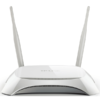
TP-Link TL-MR3420 300Mbps 3G/4G Wireless N Router
The TP-Link TL-MR3420 is a versatile wireless router designed primarily to share a 3G or 4G mobile broadband connection via a USB dongle. It creates a private Wi-Fi network, allowing multiple devices (like laptops, phones, and tablets) to connect to the internet using a cellular data signal instead of a traditional wired DSL or cable line.
It’s an ideal solution for:
-
Areas without fixed-line broadband.
-
As a reliable backup internet connection for homes or small offices.
-
Travelers who need to create a Wi-Fi hotspot from a mobile broadband stick.
Key Features & Specifications
Here’s a detailed table of its core specifications:
| Category | Specification |
|---|---|
| Product Type | 3G/4G Wireless N Router |
| Wireless Standard | IEEE 802.11b/g/n |
| Wireless Speed | Up to 300Mbps |
| Antennas | 2 x fixed 5dBi external antennas (detachable) |
| WAN Port | 1 x 10/100Mbps Ethernet Port (for traditional broadband) |
| LAN Ports | 4 x 10/100Mbps Ethernet Ports |
| USB Port | 1 x USB 2.0 Port (for 3G/4G Modem) |
| Button Functions | Power On/Off, Reset, WPS (Wi-Fi Protected Setup) |
| Power Supply | 9V/0.6A |
Detailed Functionality & Readability
1. Primary Mode: 3G/4G Router
This is its main purpose.
-
How it Works: You plug a compatible 3G or 4G USB modem (often called a “dongle”) into the router’s USB port. The router then uses the SIM card inside that modem to connect to the internet via the mobile network.
-
Readability Tip: Think of the router as a “translator” that takes the internet from your mobile data stick and broadcasts it as a Wi-Fi signal that all your devices can understand.
2. Secondary Mode: Traditional Wired (WAN) Router
If you have a standard DSL or Cable modem, you can use the TL-MR3420 as a regular Wi-Fi router.
-
How it Works: You connect an Ethernet cable from your existing modem to the blue WAN port on the TL-MR3420. The router then manages the connection and creates your Wi-Fi network.
3. Other Operating Modes
The router’s firmware is flexible and supports other useful modes:
-
Access Point (AP) Mode: Converts a wired network into a wireless one. Useful for extending Wi-Fi in an area with only an Ethernet wall jack.
-
WISP (Wireless ISP) Mode: The router can connect to a distant Wi-Fi hotspot (like a public Wi-Fi or a neighbor’s with permission) and share that connection with your own private, secure devices.
-
Readability Tip: These modes make the router a “multi-tool” for networking, adaptable to many different situations beyond just 3G/4G.
Setup and Management
Initial Setup (for 3G/4G)
-
Check Compatibility: First, verify that your 3G/4G USB modem is on the TP-Link’s supported devices list (available on their website). This is the most critical step.
-
Physical Connection: Insert your SIM card into the USB modem. Plug the modem into the router’s USB port. Connect the power adapter.
-
Connect to Router: Use a Wi-Fi device (laptop, phone) to find and connect to the TP-Link’s default Wi-Fi network (name and password are on the label at the bottom of the router).
-
Access Web Interface: Open a web browser (like Chrome or Firefox) and go to
http://192.168.1.1orhttp://tplinkmodem.net. The default username and password are bothadmin. -
Quick Setup: The web interface will have a “Quick Setup” wizard. Follow the steps to select your region, internet connection type (3G/4G), and it should automatically detect your modem.
Managing Your Network
Once logged into the router’s interface, you can:
-
Change Wi-Fi Name (SSID) and Password: Highly recommended for security.
-
Set up Firewall & Security: Enable SPI Firewall, set access control rules to block specific devices.
-
Configure Parental Controls: Restrict internet access for certain devices on a schedule.
-
View Connected Clients: See all devices currently using your network.
-
Update Firmware: Essential for security and performance improvements.
Pros and Cons
| Pros | Cons |
|---|---|
| ✅ Excellent Flexibility: The 3G/4G and multi-mode functionality is its biggest strength. | ❌ Outdated Hardware: It’s an older model. Wi-Fi standards have advanced to Wi-Fi 5 (AC) and Wi-Fi 6 (AX). |
| ✅ Strong Signal: Two external antennas provide good wireless coverage for a small home/office. | ❌ Slow Ethernet Ports: 10/100Mbps ports are a bottleneck. They cannot handle internet speeds above 100Mbps, which is common today. |
| ✅ Wide 3G/4G Modem Support: Works with a vast list of USB dongles from various carriers. | ❌ USB 2.0 Only: The slower USB standard can limit the maximum speed of some 4G modems. |
| ✅ Very Affordable: Typically found at a very low price point. | ❌ No Support for 5GHz Band: It only operates on the crowded 2.4GHz band. |
| ✅ Reliable and Stable: Known for its dependable performance for basic needs. | ❌ Not for High-Speed 4G/LTE: It cannot fully utilize the potential speed of modern 4G/LTE networks due to its hardware limitations. |
Who is this router for in 2024 and Beyond?
The TL-MR3420 is a specialized tool for specific use cases. It is not recommended as a primary router for a modern home with a high-speed fiber or cable connection.
It is perfectly suited for:
-
Emergency Internet Backup: Keeping it in a closet with a cheap 4G dongle and a pay-as-you-go SIM card for when your main internet fails.
-
Rural or Temporary Locations: Where the only available internet is through a cellular network.
-
Users with very basic internet needs who have a confirmed mobile data plan speed of less than 100Mbps.
Conclusion
The TP-Link TL-MR3420 is a classic, reliable workhorse from the 3G/4G era. Its primary value lies in its ability to convert a cellular signal into a shared Wi-Fi network. While its technology is now dated and it lacks the speed and features of modern routers, it remains a highly cost-effective and functional solution for niche scenarios where traditional broadband is unavailable or as a reliable backup option.
Reviews
There are no reviews yet.